Post database installation action items
Overview
When your CAST Storage Service or PostgreSQL instance has been installed, various changes must be actioned before you start using the instance. These are listed below.
Configure network access via pg_hba.conf
Out of the box CAST Storage Service and PostgreSQL instances are configured to allow incoming connections on IPv4 from anywhere via the following line in the pg_hba.conf file:
host all all 0.0.0.0/0 scram-sha-256
Therefore you may wish to secure your instance using the pg_hba.conf file to restrict access. There are many ways to do this which will entirely depend on your own environment and organization - for example you may wish to allow access only from certain IP addresses/hosts, or specific PostgreSQL users. The pg_hba.conf file is explained in more detail here: https://www.postgresql.org/docs/current/auth-pg-hba-conf.html . Any changes to this file require that the instance is restarted before they are taken into account.
The pg_hba.conf can be found in the following locations, although this may differ for installations in Linux environments:
CAST Storage Service
%PROGRAMFILES%\CAST\CastStorageService<version>\db_data\pg_hba.conf

Linux
/etc/postgresql/<version>/main/pg_hba.conf
In a Linux environment, use find / -name "pg_hba.conf" to recursively search all folders to find this file.
Configure the instance via postgresql.conf
The postgresql.conf file contains various parameters that will configure your instance to function in a specific way. If you are using CAST Storage Service, CAST has already customized some of the parameters in this file to ensure optimal performance, however, if you have installed a release of PostgreSQL on Linux/Docker, you must manually modify the parameters in this file as shown below (you may need to uncomment some options).
Where to find the postgresql.conf file
The postgresql.conf can be found in the following locations, although this may differ for installations in Linux environments:
CAST Storage Service
%PROGRAMFILES%\CAST\CastStorageService<version>\db_data\postgresql.conf

Linux
/etc/postgresql/<version>/main/postgresql.conf
In a Linux environment, use find / -name "postgresql.conf" to recursively search all folders to find this file.
Options to customize
The values below are tailored to an instance that has 8GB of RAM available:
| Parameter | Required value | Comment |
|---|---|---|
autovacuum | default value (on) | |
autovacuum_analyze_threshold | default value (50) | |
autovacuum_vacuum_cost_delay | default value (20ms) | |
autovacuum_vacuum_cost_limit | 200 | |
autovacuum_vacuum_scale_factor | default value (0.2) | |
autovacuum_vacuum_threshold | default value (50) | |
bytea_output | escape | |
checkpoint_completion_target | 0.9 | *See below. |
client_encoding | default value (sql_ascii) | |
commit_delay | 10 | |
cursor_tuple_fraction | 1.0 | |
default_statistics_target | default value (100) | |
effective_cache_size | 6GB | 6BG with the min. capacity of memory 8GB, |
| 75% of RAM. *See below. | ||
effective_io_concurrency | 200 | *See below. |
fsync | off | |
full_page_writes | off | |
huge_pages | off | *See below. |
log_autovacuum_min_duration | 1000ms | |
log_line_prefix | ‘%t [%p]: [%l-1] ' | Don’t forget the space before final quote mark. |
log_min_duration_statement | default value (-1) | |
log_min_messages | default value (warning) | |
log_temp_files | 1024kB | |
maintenance_work_mem | 512MB | *See below. |
max_connections | 300 | *See below. |
max_locks_per_transaction | 4096 | Higher value than 64 by default. |
max_wal_size | 2GB | *See below. |
min_wal_size | 1GB | *See below. |
port | 2284 | |
random_page_cost | default value (4) | *See below. |
seq_page_cost | default value (1.0) | |
shared_buffers | 2GB | *See below. |
standard_conforming_strings | on | |
synchronous_commit | off | |
tcp_keepalives_idle | 600 | The default setting of 0 = 7200 seconds (2 hours). |
temp_buffers | 32MB | |
wal_buffers | default value (-1) - sets based on shared_buffers | *See below. |
work_mem | 64MB | *See below. |
* If you have assigned more than 8GB RAM to the machine, CAST recommends using PGTune to determine some of the parameters defined in the postgresql.conf file to match the RAM assigned to the host machine, specifically the following:
checkpoint_completion_targetdefault_statistics_targeteffective_cache_sizeeffective_io_concurrencyhuge_pagesmaintenance_work_memmax_connectionsmax_wal_sizemin_wal_sizerandom_page_costshared_bufferswal_bufferswork_mem
When running PGTune, choose the following:
- Set the
DB versionto the installed version - Set the
DB TypetoMixed type of application - Set the
Number of connectionsto 300
Some of the values suggested by PGTune are somewhat low. Therefore, please calculate the following postgresql.conf parameters as follows:
shared_buffers- value should be 25% of available RAM with a max of 8GBmaintenance_work_mem- 512Mwork_mem- 64MB
Create users
By default CAST Storage Service and PostgreSQL includes a system account user named postgres with the role postgres. CAST Storage Service provided by CAST includes two additional custom users as follows:
| Username | Password | Permissions | Notes |
|---|---|---|---|
operator | CastAIP | SUPERUSER | - |
guest | WelcomeToAIP | - | Note that this user is not used by CAST Imaging and is designed for third-party read-only access. |
If you would like to create these users on your PostgreSQL instance, use the following commands:
psql
*create user operator with SUPERUSER password 'CastAIP';
*create user guest with password 'WelcomeToAIP';
*grant postgres to operator;
You are also free to create your own users and then use them with CAST Imaging if you prefer - you need to have a minimum of one user with the SUPERUSER permission and then grant the postgres role to this user. For example:
psql
*create user my_user with SUPERUSER password 'my_password';
*grant postgres to my_user;
If you prefer to create custom users that do NOT require the SUPERUSER permission this is also possible. For example, this script creates a role my_role with the password my_password that can login. The role has not been granted the SUPERUSER permission and instead only the minimum permissions required to operate CAST Imaging are granted:
psql
*create role my_role LOGIN PASSWORD 'my_password' NOSUPERUSER INHERIT NOCREATEDB NOCREATEROLE NOREPLICATION;
*grant create, connect, temporary on database postgres to my_role;
Starting and stopping your instance
CAST Storage Service
A Microsoft Windows service is automatically created as part of the installation process and you can use this to start/stop/restart your instance. The service will be set to start automatically when the host is rebooted.
PostgreSQL on Linux
If you have used the official PostgreSQL repository for your distribution’s package manager system to install the instance, a SystemD service entry will be created to ensure that the service starts automatically when the host is rebooted.
You can also use this to start/stop/restart etc. your instance:
systemctl stop postgresql-<version>.service --> TO MANUALLY SHUTDOWN
systemctl start postgresql-<version>.service --> TO MANUALLY START
systemctl restart postgresql-<version>.service --> TO MANUALLY RESTART
systemctl status postgresql-<version>.service --> TO CHECK STATUS
systemctl reload postgresql-<version>.service --> TO RELOAD CONFIGURATION
Define your database instance in CAST Imaging
During a from scratch installation
When installing CAST Imaging from scratch:
- on Microsoft Windows you will need to define your database instance as part of the installation process.
- on Linux via Docker, a database instance is provided automatically as an image.
As an additional database
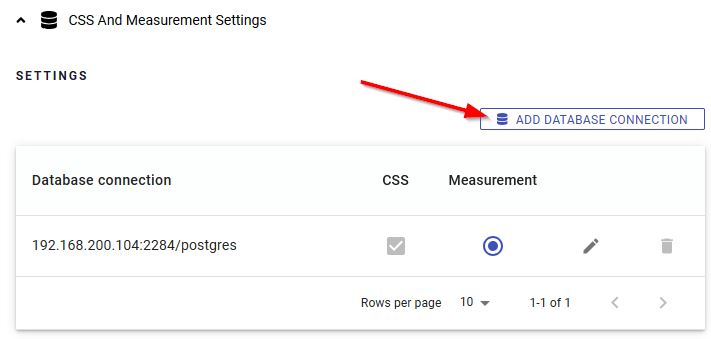
If you need to declare the database instance as an additional resource to help load balance your analyses, use the CSS and Measurement Settings in the CAST Imaging admin UI.